Product guide
8 min readMCPNest: A Practical Control Plane for Enterprise MCP Tools
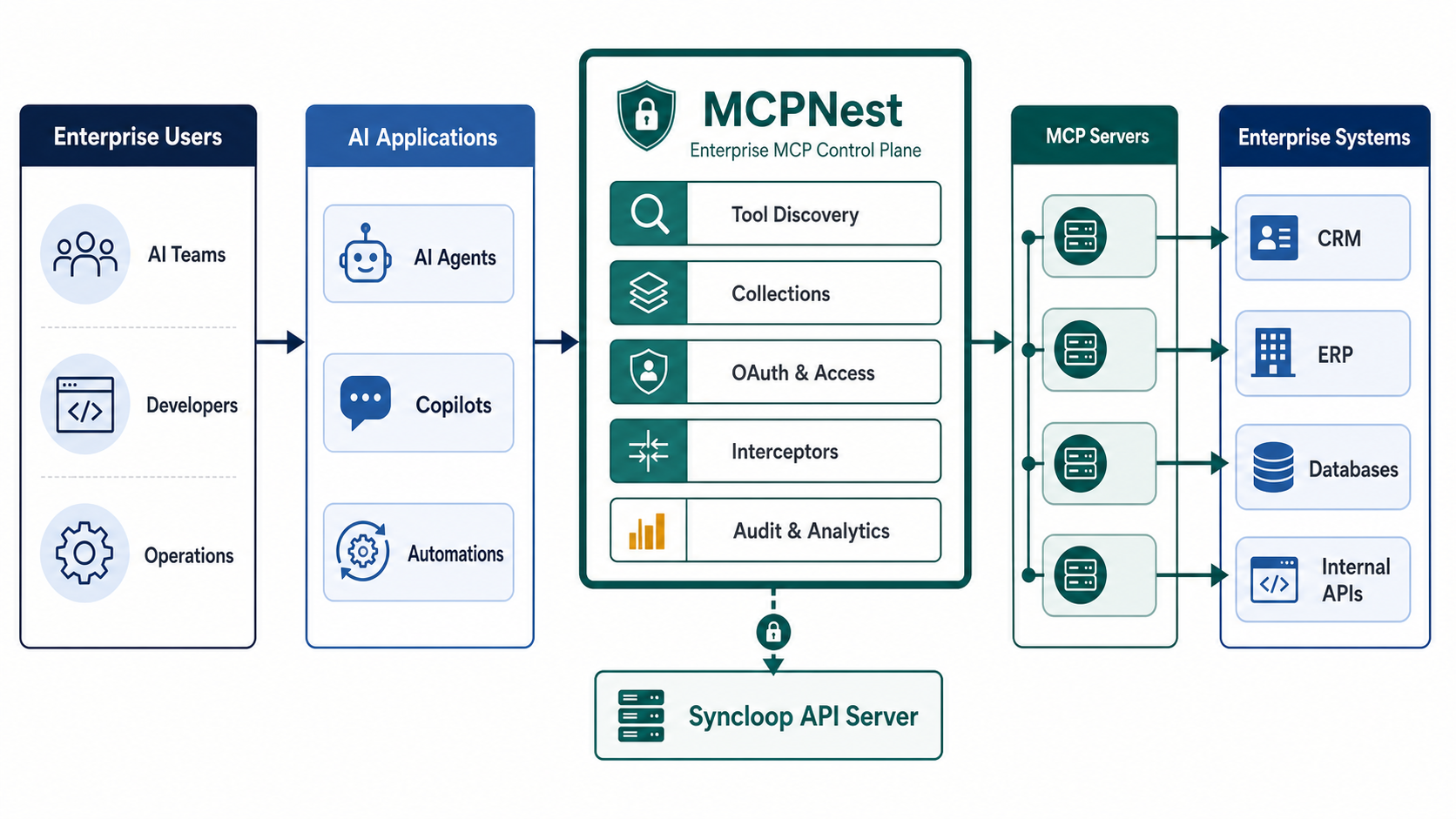
MCPNest gives teams a focused way to connect MCP endpoints, inspect tools, curate reusable collections, manage OAuth access, run tool calls, and monitor execution from one Syncloop workspace.
The problem
AI tools need an operating layer, not another spreadsheet of endpoints
Model Context Protocol adoption creates a practical operations question: once a team has multiple MCP servers, who tracks the endpoints, authentication, tool descriptions, collections, and runtime behavior? MCPNest answers that question with a browser-based control plane that sits close to the Syncloop API.
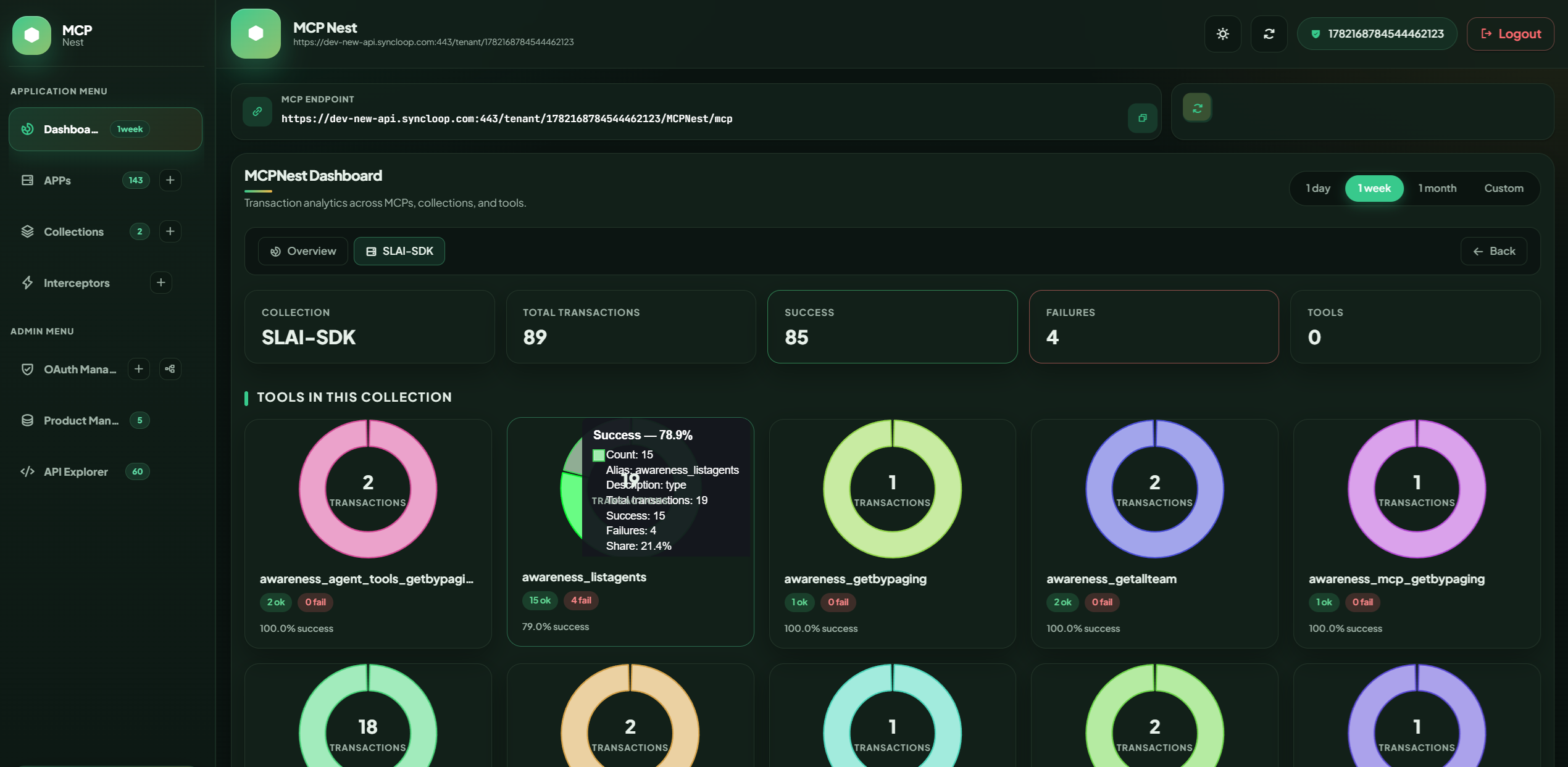
Instead of forcing developers to remember endpoint IDs or test every tool call through ad hoc scripts, MCPNest organizes the workspace into applications, collections, OAuth credentials, interceptors, and dashboard analytics. The result is a shorter path from "we have an MCP server" to "the right people can safely use the right tools."
Local setup
Start with the server, then open the GUI
The supplied setup notes target Syncloop version 2.0.1. Download the Syncloop server package, install JDK 25 or newer for the operating system, place the JDK inside the unzipped server folder, and update the API server start script so `JAVA_HOME` points to that JDK.
After updating `server.properties` for middleware and Ignite working directories, start the API server, run a static HTTP server for the GUI, and open `http://localhost:3000/mcpnest`.
Agent-ready setup
Copy this prompt to install Syncloop Server and open MCPNest
If you are using an AI coding agent or operations assistant, give it a precise installation prompt instead of a loose request. The prompt below follows the MCPNest README setup flow: download the Syncloop server, install JDK 25, update server paths, start the API server, start the GUI server, and verify login.
You are helping me install and start Syncloop Server with the MCPNest GUI on my local machine.

Goal:
Install Syncloop Server version 2.0.1, configure Java 25, start the API server, serve the MCPNest GUI, and verify that I can open http://localhost:3000/mcpnest.

Tasks:
1. Detect my operating system and working directory.
2. Download the Syncloop Server zip from:
   https://github.com/syncloop-rnd/oss-sl-server/archive/refs/heads/main.zip
3. Unzip it into a clear local folder.
4. Download the correct Microsoft JDK 25 package for my OS:
   Windows: https://aka.ms/download-jdk/microsoft-jdk-25.0.3-windows-x64.zip
   Linux: https://aka.ms/download-jdk/microsoft-jdk-25.0.3-linux-x64.tar.gz
   macOS: https://aka.ms/download-jdk/microsoft-jdk-25.0.3-macos-x64.tar.gz
5. Extract JDK 25 inside the unzipped oss-sl-server folder.
6. Update the API server start script:
   On Linux/macOS, update start-api-server.sh so JAVA_HOME points to "$APP_HOME/jdk-25.0.3".
   On Windows, update start-api-server.bat so JAVA_HOME points to "%CD%\jdk-25.0.3".
7. Update resources/config/server.properties inside the unzipped server folder:
   middleware.server.home.dir=/oss-sl-server/integration/middleware/
   ignite.workingDirectory.path=/oss-sl-server/ignite
   If my install path is different, adapt these values to the actual local server folder.
8. Start the API server using the appropriate start-api-server script.
9. Install a static HTTP server if needed, then start the MCPNest GUI server.
10. Open:
    http://localhost:3000/mcpnest
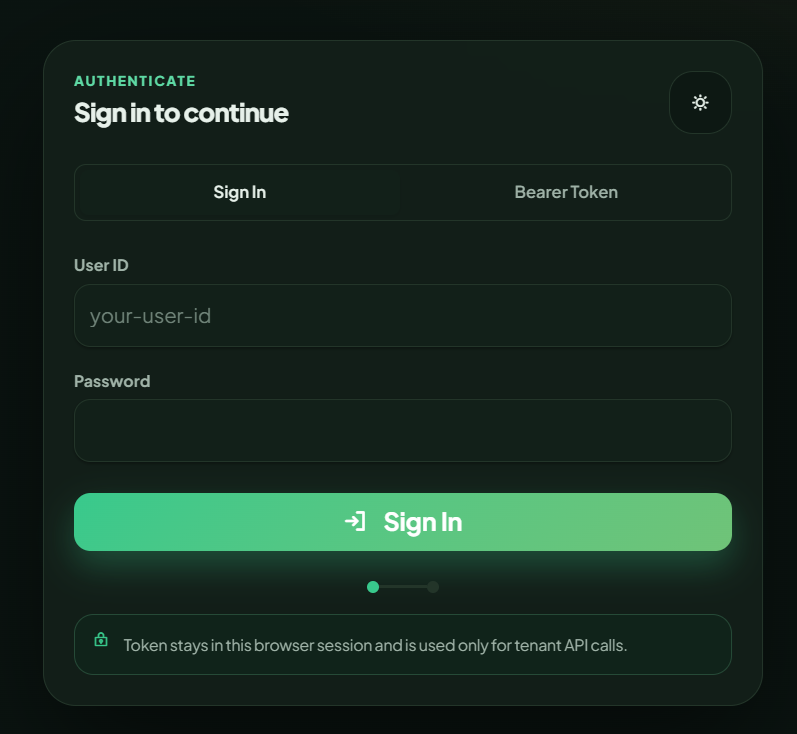
11. Verify the login screen appears.
12. Use these default credentials for the first login:
    User: admin
    Password: admin01

Important:
- Do not skip verification.
- If a port is already in use, identify the process or choose the next available port and tell me the final URL.
- If any command fails, show the exact error, explain the likely cause, and continue with the safest corrective step.
Using the GUI
The MCPNest workflow from login to live tool calls
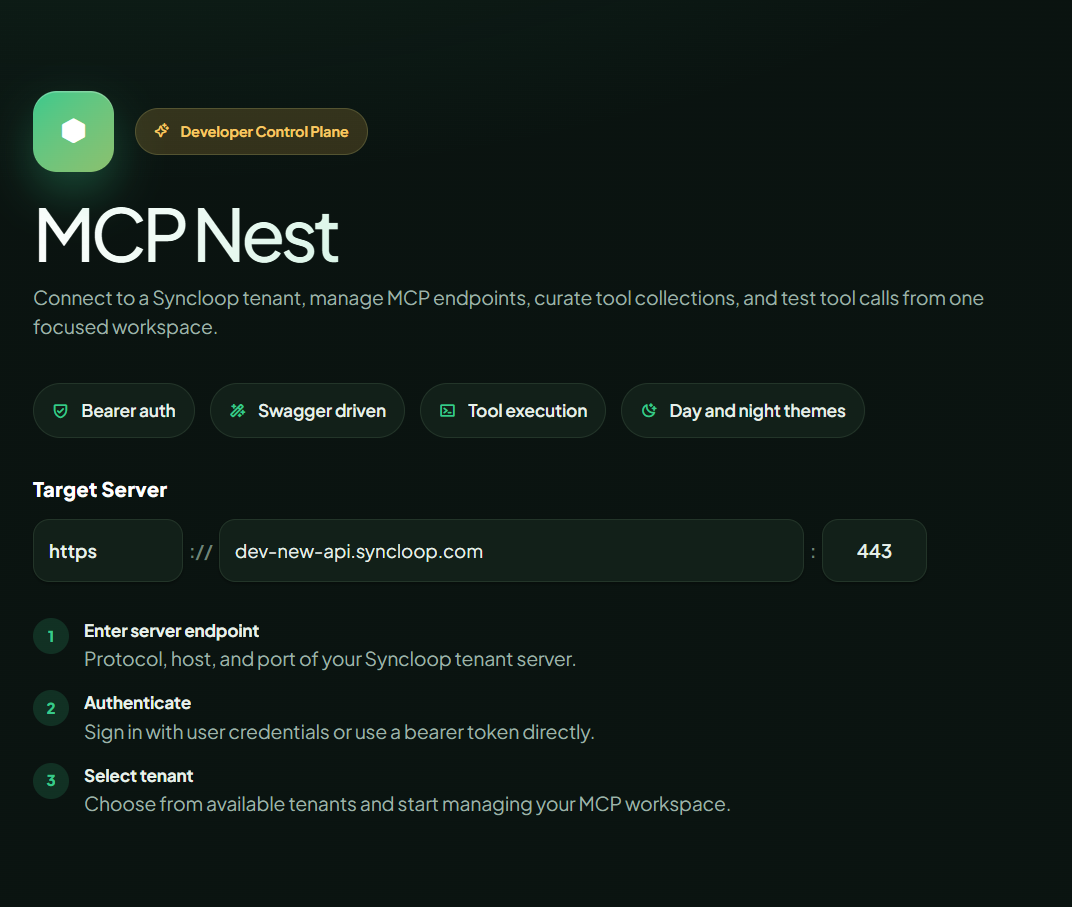
The GUI is a static AngularJS single-page application backed by `MCPNest-swagger.json`. It stores server host, port, protocol, and tenant values in browser local storage. The bearer token stays in session storage and is cleared on logout, while the last server values remain available for the next session.
Connect a workspace
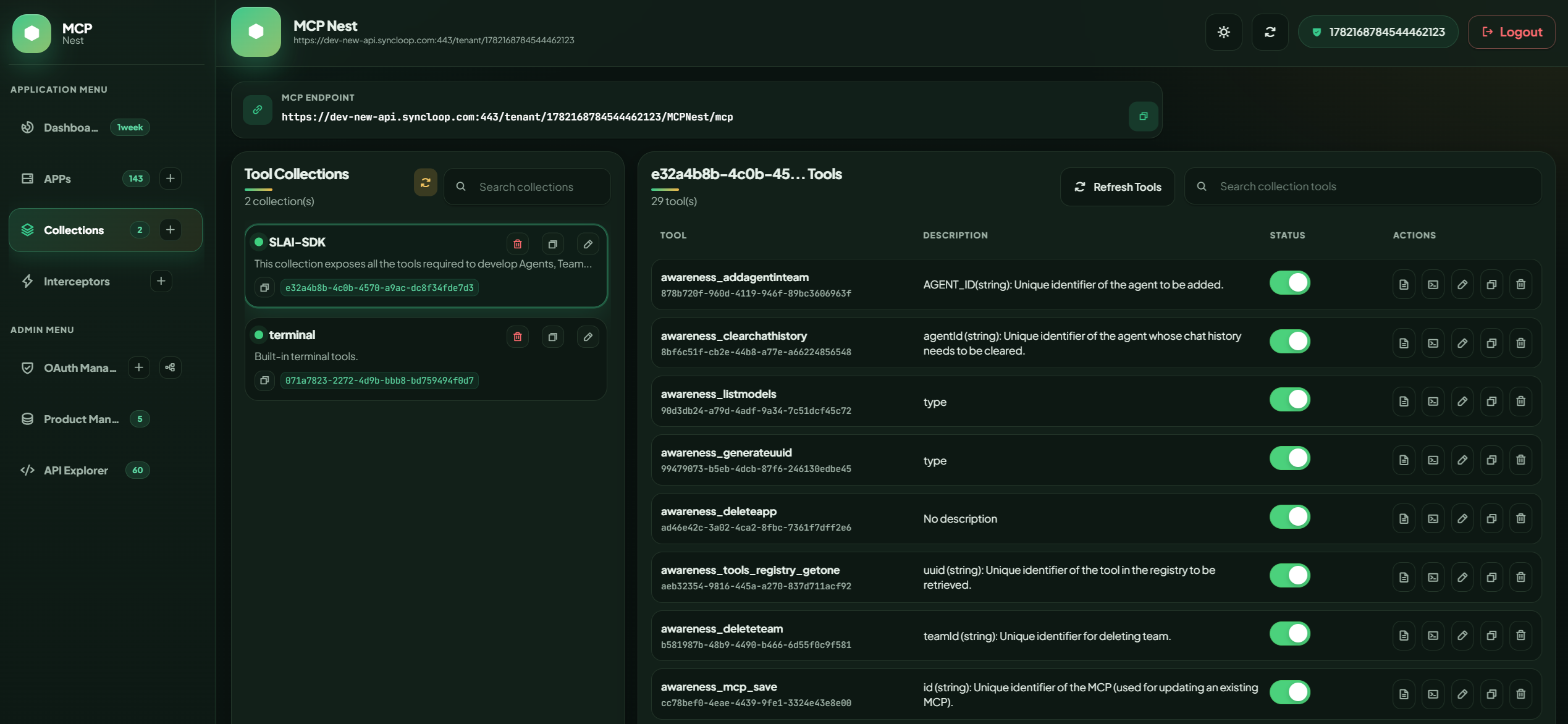
Enter the target server endpoint, sign in with user credentials or a bearer token, then select the tenant. Once connected, the left navigation opens Dashboard, APPs, Collections, Interceptors, OAuth Manager, Product Manager, and Explorer.
Add MCP endpoints
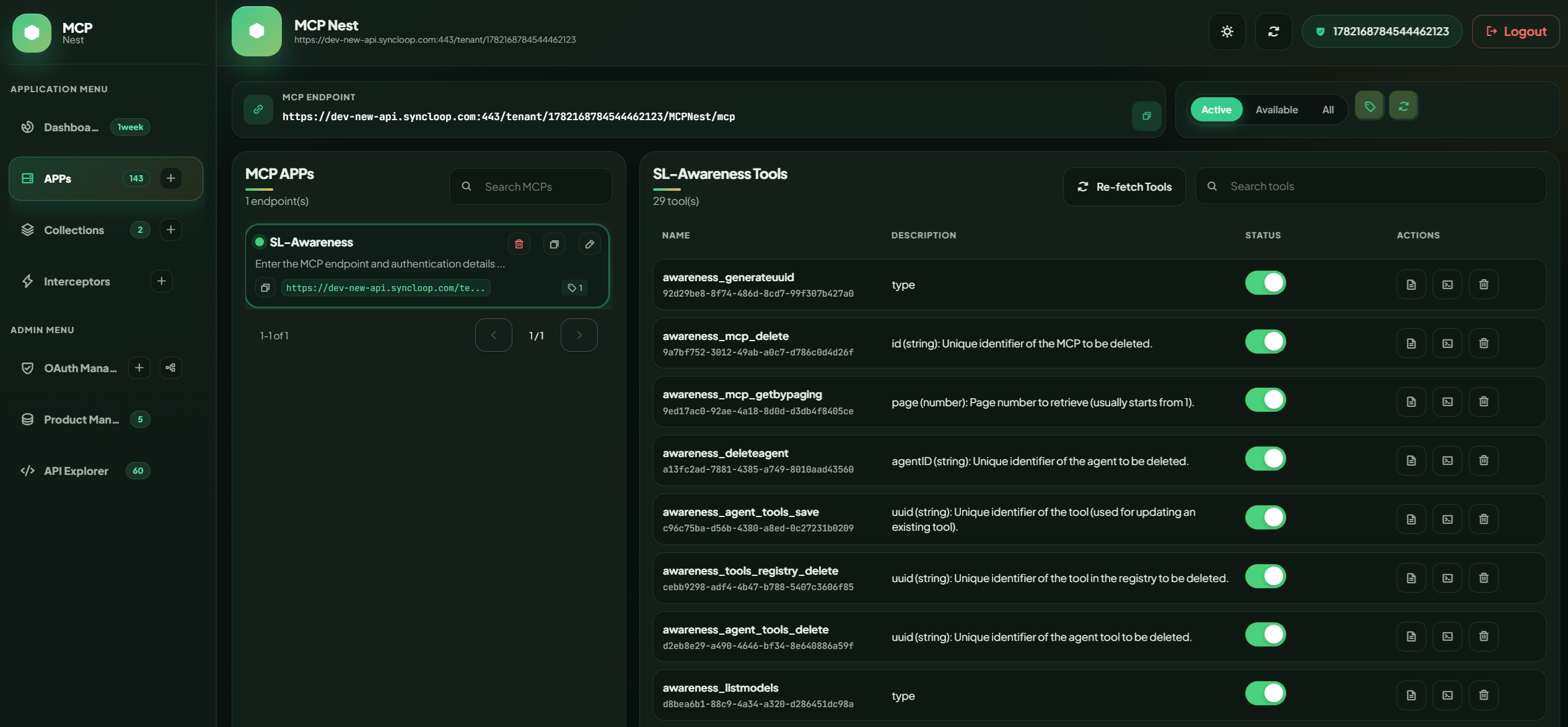
Use APPs to add a new MCP endpoint, list registered MCPs, refresh tool discovery, inspect tool descriptions, and enable or disable individual tools without deleting the endpoint.
Curate collections
Collections group selected tools into a cleaner user-facing surface. A collection tool can have its own alias, description, enabled state, cache setting, and interceptor references.
Run and debug tools
Tool actions expose usage details, execute calls, and generate debug curl output. This helps teams move from endpoint discovery to repeatable execution without leaving the control plane.
Govern access and behavior
OAuth Manager supports credential setups, authorization flows, token listing, token access changes, mapping profiles, category filters, and ready provider catalogs. Interceptors add managed input or output processing around tool calls.
API-backed operations
What the Swagger file reveals about the product surface
The REST wrapper API exposes MCPNest as more than a front-end console. The Swagger file defines operations for creating tool collections, adding MCP endpoints, adding tools to collections, listing MCPs, calling tools, refreshing discovered tools, cloning MCPs, cloning collections, and editing collection mappings.
Administrative APIs cover database export, import, recreate, migration, and audit-log purging. Dashboard APIs provide analytics over transactions by MCP, collection, and tool. OAuth APIs manage setups, callbacks, tokens, provider catalogs, categories, mapping profiles, and token access. Interceptor APIs attach input and output processing rules to MCP tools or collection tools.
Endpoint lifecycle
Add, list, refresh, clone, enable, disable, and delete MCP endpoints and tools.
Collection lifecycle
Create collections, map tools, edit aliases, clone mappings, and control availability.
Security operations
Configure OAuth providers, authorize tokens, apply mapping profiles, and inspect access state.
Runtime governance
Use interceptors, cache settings, debug curl output, dashboard stats, and audit-log maintenance.
The takeaway
MCPNest turns MCP adoption into a manageable operating model
The value of MCP grows when tools are discoverable, callable, secure, and organized around real team workflows. MCPNest provides that operating layer. Developers can connect endpoints and test tools quickly. Administrators can manage OAuth, collections, interceptors, and product data. Operators can monitor usage and trace execution from the dashboard.
For teams building AI systems on Syncloop, that matters because the hardest part is rarely a single tool call. The harder challenge is making many tools usable, governed, and understandable as the workspace grows.
Review setup steps